Help
How to connect your platforms, activate a widget, and edit it in the Hub.
Connecting your platforms
Connect a platform once, on the Connections page, and your widgets start getting its chat and events.
Chat widgets use both: messages for chat, events for the alerts in it. Goals, timers and rotators use the events only: subs, follows, cheers, tips.
YouTube
- Press Connect on the Connections page. You are sent to Google to sign in.
- Grant Widget Hub permission to read your channel’s live chat.
- You come back here automatically and YouTube shows as Connected. YouTube messages and events now appear in any widget with YouTube support.
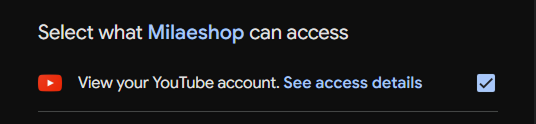
Tick the permission checkbox on Google’s screen. Left unchecked, you come back with nothing connected
Kick
- Press Connect on the Connections page. You are sent to Kick to log in and approve access.
- Kick uses a secure login, so your password is never shared with Widget Hub.
- You come back here automatically once approved.
Ko-fidraft
Ko-fi has no log-in-and-approve flow like the others. Instead it sends your donation events to a webhook address that you paste into your own Ko-fi settings, so there are two things to copy across rather than one button to press.
- Press Connect: your Ko-fi webhook settings open in a new tab, and this page stays open.
- Copy your Widget Hub webhook URL and paste it into the Webhook URL field on Ko-fi, then press Update there.
- Copy the Verification token Ko-fi generated, paste it back here, and press Save.
How to add widget here and what for
Every setting is in StreamElements as before. I have made customization pages for widgets here to make it more comfortable to apply the styling settings each widget has, and to make the interface friendlier than the SE settings column, which was restricting in its layout and highlights.
The widget editor has:
- Test buttons and the emulation section on the left, to see how each message and event looks in the widget
- The widget preview, where all settings are applied instantly and you see the changes right away
- The customization settings window, organized with care for your comfort
- The styles section, where I put styling presets for the widgets and where you can save your own styles as well. Apply your changes, save the style, and use it again later!
Press Add widget to the hub
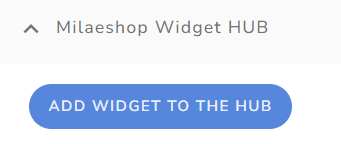
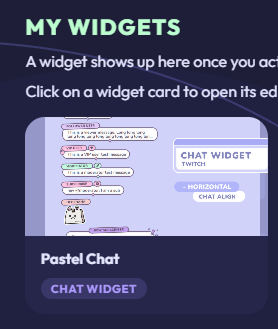
Open the widget in StreamElements and press Add widget to the hub, in the left column, in the 💜 | Milaeshop Widget hub group. It appears in your Widget Hub account straight after. Click the widget card to open its editor.
Getting your style onto the widget
When your style is ready, copy it from the editor and paste it into the widget in StreamElements.
Copy Data, then paste it into StreamElements
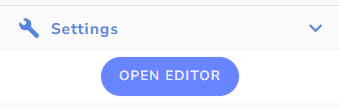
Press Copy Data at the top of the editor. In StreamElements, open your overlay, click the widget and press Open editor.
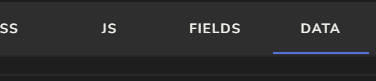
Go to the DATA tab, select everything there and paste. Press Done, then Save the overlay.
Adding it to OBS
Your widget lives on a StreamElements overlay. OBS shows that overlay as a browser source.
Copy the overlay URL
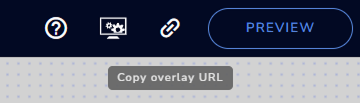
The link icon in the top right corner of the overlay editor, Copy overlay URL.
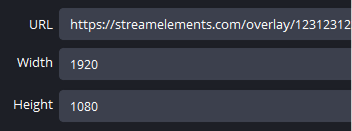
New browser source, 1920 by 1080
Add a Browser source, paste the URL into it, and set the width and height to 1920 and 1080. The overlay is a whole screen, so give it a whole screen.
To show only part of it, hold Alt and drag the edges of the source. That crops the frame without resizing anything inside it.
Turn SRGB off
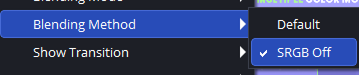
Right click the browser source, then Blending Method, then SRGB Off.